Introduction
Running Google Ads campaigns without proper measurement is like driving with your eyes closed. To know whether your paid ads are actually working, you need the right metrics, the right tracking setup, and the right platforms working together. This guide covers exactly how to measure Google Ads performance correctly, from core metrics to the full measurement stack.
Step 1: Understand the Core Google Ads Metrics
Before connecting external platforms, you need to know what Google Ads reports natively:
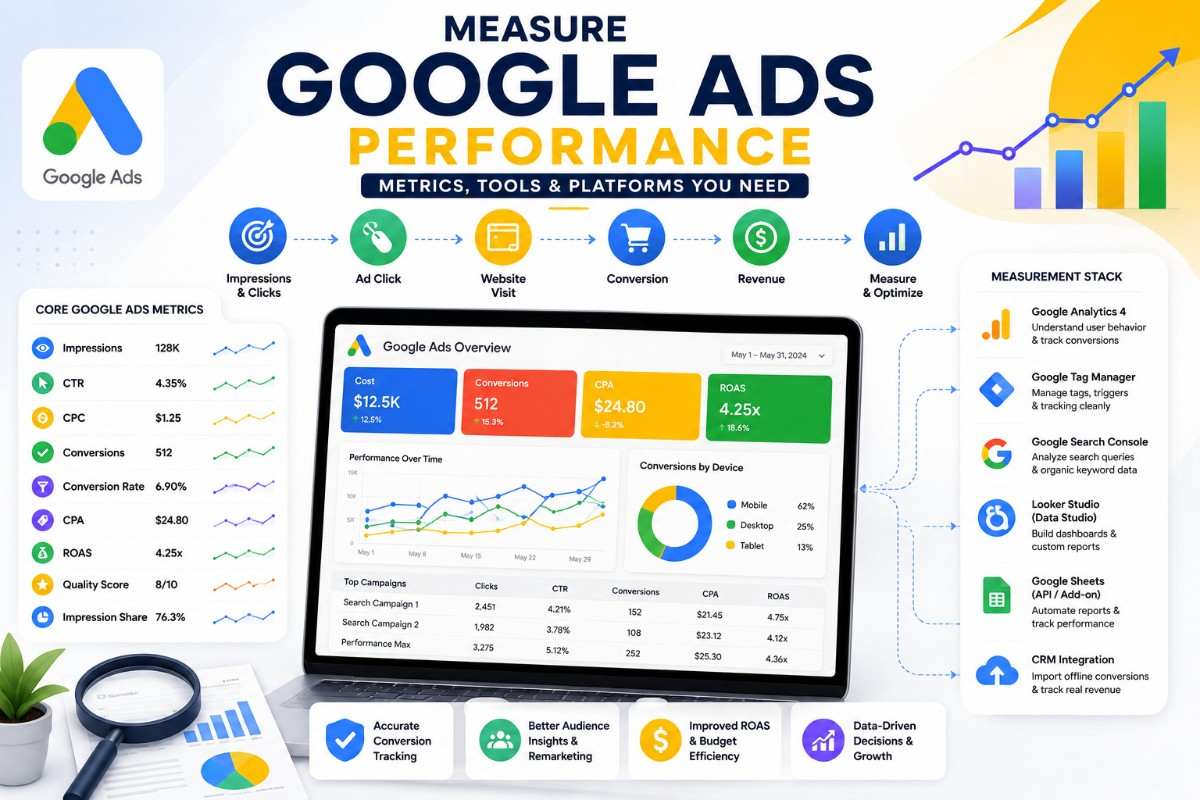
- Impressions – how many times your ad was shown
- CTR (Click-Through Rate) – percentage of people who clicked after seeing your ad
- CPC (Cost Per Click) – average amount paid per click
- Conversions – completed goal actions (purchase, form fill, call, sign-up)
- Conversion Rate – percentage of clicks that turned into conversions
- CPA (Cost Per Acquisition) – cost per conversion
- ROAS (Return on Ad Spend) – revenue generated per dollar spent
- Quality Score – Google’s rating of ad relevance, expected CTR, and landing page experience
- Impression Share – percentage of available impressions your ads actually received
These metrics tell you what happened inside the platform, but real measurement requires connecting Google Ads to a broader ecosystem of tools.
Step 2: Set Up Conversion Tracking Properly
Accurate measurement starts with conversion tracking. Without it, every other metric is guesswork.
- Install the Google Tag (or use Google Tag Manager) on your website
- Define conversion actions in Google Ads (purchases, leads, calls, sign-ups)
- Use Enhanced Conversions to improve match accuracy using hashed customer data
- For phone-based businesses, set up call conversion tracking
- For e-commerce, enable transaction-specific conversion values so ROAS calculations are accurate, not estimated
Step 3: Connect Google Analytics 4 (GA4)
Google Analytics 4 is essential for understanding what happens after the click — something Google Ads alone can’t fully show.
Linking GA4 to Google Ads allows you to:
- See user behavior on-site after ad clicks (pages viewed, time on site, bounce rate)
- Build audiences based on website behavior to feed back into Google Ads targeting
- Track multi-session, multi-device conversion paths
- Use GA4’s Explorations to analyze funnels and drop-off points beyond last-click data
This connection turns raw click data into a real picture of the customer journey.
Step 4: Use Google Tag Manager for Cleaner Tracking
Google Tag Manager (GTM) acts as a control center for all your tracking tags:
- Deploy the Google Ads conversion tag, GA4 tag, and any third-party pixels without editing site code repeatedly
- Use triggers to fire conversions only on real actions (e.g., “Thank You” page views, button clicks)
- Test tags with GTM’s Preview Mode before publishing, reducing tracking errors
Clean tag management prevents duplicate or missing conversions — one of the most common causes of inaccurate Google Ads reporting.
Step 5: Monitor Search Query Data with Search Console (Organic Context)
While Google Search Console tracks organic search, not paid, comparing it alongside Google Ads gives valuable context:
- Identify keyword overlap between paid and organic traffic
- Spot opportunities to reduce paid spend on terms already ranking well organically
- Understand overall search visibility for your brand and category
Step 6: Use Attribution Models Correctly
Google Ads and GA4 both offer multiple attribution models:
- Last-click – gives full credit to the final interaction before conversion
- Data-driven attribution (DDA) – uses machine learning to distribute credit across the customer journey (Google’s recommended default)
- Position-based / linear models – distribute credit more evenly across touchpoints
For businesses with longer sales cycles or multiple touchpoints, data-driven attribution typically gives a more accurate picture than last-click alone.
Step 7: Build Centralized Reporting Dashboards
Relying on the native Google Ads dashboard alone can be limiting. Combine data using:
- Looker Studio (formerly Google Data Studio) – connects Google Ads, GA4, and other sources into custom visual reports
- Google Sheets with the Google Ads API/Add-on – for lightweight, automated performance tracking
- Google Ads Scripts – for automated alerts (e.g., budget pacing, CPA spikes)
A centralized dashboard makes it easier to compare spend, conversions, and ROAS trends over time without logging into multiple platforms.
Step 8: Track Offline Conversions (If Applicable)
For businesses where the final sale happens outside the website (phone calls, in-store visits, CRM-based sales):
- Use Offline Conversion Import to upload conversion data from your CRM back into Google Ads
- Connect Google Ads with Salesforce or HubSpot (via native integrations) to track leads all the way to closed revenue
- This closes the loop between ad spend and actual business outcomes, not just on-site actions
Step 9: Review Performance at the Right Intervals
Measurement isn’t just about tools — it’s about timing:
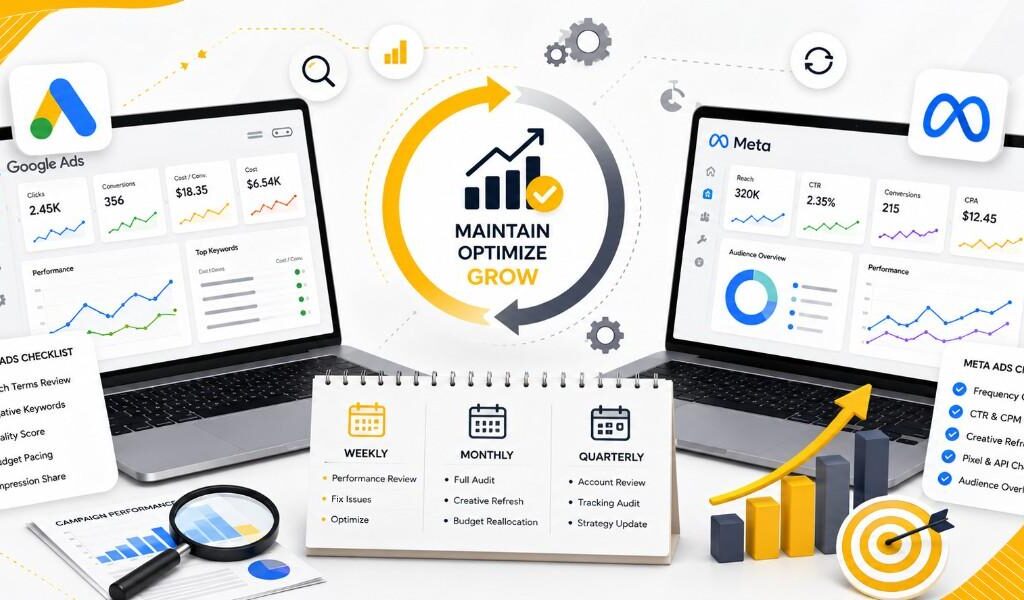
- Daily – check spend pacing and anomalies
- Weekly – review CTR, CPC, and conversion trends
- Monthly – analyze CPA, ROAS, and attribution shifts
- Quarterly – evaluate whether tracking setup and KPIs still match business goals
Common Measurement Mistakes to Avoid
- Relying only on last-click attribution for multi-touchpoint journeys
- Not linking GA4 to Google Ads, missing post-click behavior data
- Counting duplicate conversions due to poor tag management
- Ignoring offline conversion data, undervaluing true ROAS
- Reviewing performance too infrequently to catch issues early
Conclusion
Measuring Google Ads correctly goes far beyond checking clicks and impressions. It requires a connected stack — Google Ads, GA4, Google Tag Manager, Looker Studio, and CRM integrations — working together to show the full path from ad click to revenue. Get the tracking foundation right, and every optimization decision you make afterward will be based on real data, not guesswork.